Windows Install on IIS7.5
Windows Install on IIS7.5
Cloned from he99's guide: github.com/he99
This page shows the steps needed to install Ampache on IIS7.5 (Server 2008R2) in a subdirectoy of "Default Website".
WARNING: This is my first installation of Ampache, most stuff I wanted is working * but likely not everything.
NOTE this is a user guide written against Ampache V5 on Server 2008R2, and it is kept for the IIS-specific parts (folder security, URL Rewrite, PHP Manager) which still apply. The versions it names do not:
- Server 2008R2 and IIS7.5 are long out of support. The steps work the same on later IIS versions
- The Web Platform Installer was retired by Microsoft in 2022. Install PHP from windows.php.net (Thread Safe build) and the URL Rewrite module directly
- PHP 7.4 is dead. Ampache8 needs PHP 8.5, Ampache7 needs 7.4 to 8.4
- The
/rest/rewrite rule below only covers Subsonic. Ampache8 also serves its REST API from/rest/, which needs the full rule set from public/rest/.htaccess.dist, and/play/needs rules too or nothing streams. Rewrite Rules explains what each one does - Downloading a release zip instead of cloning avoids the composer and npm build entirely — see Which zip?
For a current Windows install, start with the Windows Installation Guide.
What works
Everything I need, especially:
- Web interface and web music player
- The Subsonic API, i.e. mobile applications using this interface
- also works for Ampache V5 (there are some notes below on the differences)
What did/does not work (so far)
- Streaming Radio stations only work with mp3 streams (m3u playlists don't work, this is an already known issue, see issue 1313
Initial catalog creation did not work because the IIS process was not able to access my media folders. Adding the catalog had to be done manually (accessing the database)Was fixed by allowing the local IUSR account to read my media folders (see Configure IIS Folder Security).Catalog scanning seemed not to work, so I used the command line utilities(turned out that I simply did not wait long enough, scanning large media folders can take quite some time)
Prerequisites
- IIS7.5 installed (IIS was already installed/running on my 2008R2 server)
- Git, composer etc. installed (only required if you want to clone and build Ampache as described in the manual at installation.
- MySQL or MariaDB installed (I've used MariaDB 10.4 x64)
Installation steps
Main steps are:
- Install IIS and required addons
- Clone/install and configure Ampache
- Configure IIS folder security
- Configure IIS rewriting
- Configure scheduled tasks
Install IIS modules
I've used the "Web Plattform Installer" (WebPI) to install the following modules
- PHP 7.4.1
- URL Rewrite V2.1
As I had already installed another PHP version on the server, I've also installed PHPManager V2.4 from phpmanager. At the first run it showed a few suggestions * I followed them all.
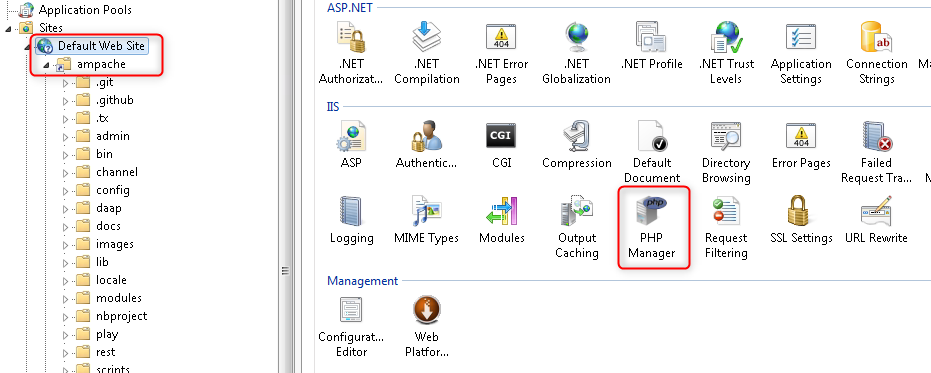
Clone/install and configure Ampache
I've installed Ampache into the "Default Website" into the virtual subfolder "ampache". This is done by "Add Virtual Folder", name it "ampache" and specify the physical path (I've used the default C:\inetpub\wwwroot\ampache * for Ampache V5, use C:\inetpub\wwwroot\ampache\public instead due to the changed webroot).
Then do the following in a command shell:
cd C:\inetpub\wwwroot
git clone https://github.com/ampache/ampache.git ampache
cd ampache
composer install --prefer-dist --no-interaction
On Ampache7 the charts need an extra library, see Chart FAQ:
composer require szymach/c-pchart "2.*"
Ampache8 ships its charting library as a normal dependency, so that step is no longer needed.
For whatever reason (likely file access), I could not get the Web-based Installer to successfull write the config file, so I changed the relevant settings manually: rename config\ampache.cfg.php.dist to config\ampache.cfg.php and edit it.
I had to change the following to make Ampache run correctly from the http://<server>/ampache subfolder:
web_path = "/ampache"
local_web_path = "http://localhost/ampache"
Other required changes are obviously the database connection:
database_username = <myusername>
database_password = <mypassword>
Other changes for debugging (temporarily):
debug="true"
log_path="C:\inetpub\logs\ampache"
I left everything else at the default values.
Configure IIS folder security
See stackoverflow
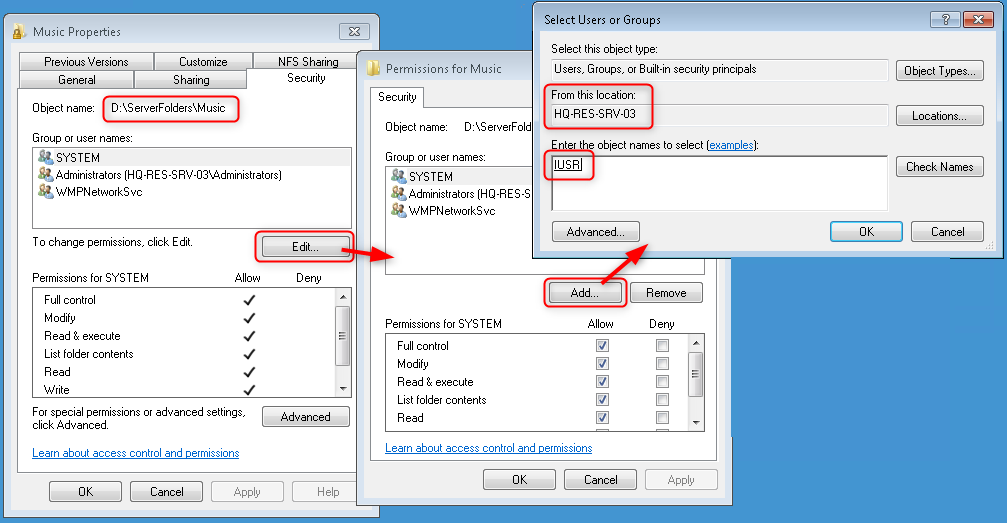
To allow Ampache to access the media folders, add an ACL allowing read access for the local IUSR account.
Here is as sample from my machine (make sure to search on the local system for the IUSR account and not in the Domain):
Configure IIS rewriting
This was kind of tricky as IIS URL Rewrite rules can be applied to a folder and will then only see the relative URL (i.e. folder prefix stripped of). Here are some helpful resources:
https://blog.lextudio.com/the-very-common-mistakes-when-using-iis-url-rewrite-module-a2ab7e4fee59https://docs.microsoft.com/en-us/iis/extensions/url-rewrite-module/testing-rewrite-rule-patterns
I've also enabled Failed Request tracking (see docs.microsoft.com) to actually see what IIS comes up with.
The only rewrite rule I've implemented is for the ampache/rest folder * this is required to make Subsonic clients work. The directory has a sample .htaccess.dist file, which I've converted to an IIS rule as follows (I've got some hints from groups.google.com):
-
In IIS, go to the
ampachevirtual directory and open "URL rewrite". ClickAdd ruleand select theBlank rulefrom theInbound rulessection. -
Add the following pattern ("Match Pattern" using "Regex")
rest/(.+).view$ -
Add File/Directory conditions (see below, I've added that from the .htaccess)
-
Under Action select
Rewritefor the action type and enter the following URL:/ampache/rest/index.php?ssaction={R:1}
Make sure to enable "Add query string" and optionally check "Log rewritten URL".
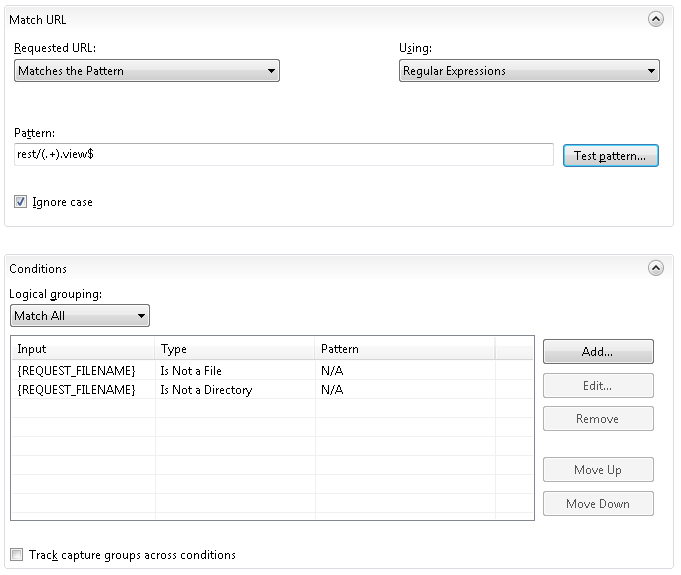

You can use the following to test the pattern (note that the input data should be relative to the current rules directory) * important is that {R:1} results in only the ping command:

Configure scheduled tasks
Windows has no cron, so the jobs Ampache expects to run on a schedule go in Task Scheduler instead. Each one is the same php bin/cli command a Linux install would run from a systemd timer.
Create a task with Task Scheduler -> Create Task (not Create Basic Task, which does not offer the options below):
- General — give it a name, tick Run whether user is logged on or not, and run it as the account that can read your media. The IIS
IUSRaccount has no password and cannot be used here, so use a normal account with read access to the catalog directories. - Triggers — New -> Daily, then tick Repeat task every if you want it more often than once a day.
- Actions — New -> Start a program:
- Program/script:
C:\php\php.exe(wherever your PHP is) - Add arguments:
bin\cli run:updateCatalog - Start in:
C:\inetpub\wwwroot\ampache
- Program/script:
- Settings — tick Stop the task if it runs longer than and give it something generous; a first catalog scan on a large library takes hours.
The Start in field is not optional. Ampache resolves its config and its autoloader relative to the working directory, so a task without it fails immediately with no useful output.
Worth scheduling, in rough order of usefulness:
| Arguments | What it does | Suggested interval |
|---|---|---|
bin\cli run:updateCatalog | Add, clean and verify every catalog | Daily |
bin\cli run:cronProcess | Preload the cached counts used by the cron_cache preference | Hourly |
bin\cli run:updateCatalog podcasts -a -g -i | Fetch new episodes for a podcast catalog named podcasts | Hourly |
Rather than filling the dialog in by hand, docs/examples/ampache_cron.xml in your install is an exported Task Scheduler task for run:cronProcess, set to repeat hourly. Import it with Task Scheduler -> Import Task, then correct the Command, Working directory and the user it runs as — the export has C:\php\php.exe and C:\ampache, which are unlikely to both match your install.
To check a task actually works, run the same command by hand from a cmd prompt first. Task Scheduler only reports an exit code, so a PHP error is invisible until you have seen the command succeed on its own.
cd C:\inetpub\wwwroot\ampache
C:\php\php.exe bin\cli run:updateCatalog
Cron covers what each job does and why the cached counts are worth it, and php bin/cli on its own lists every command.
Todo/open issues
- To add a catalog, IIS needs read access * file system security must be changed accordingly
- Catalog indexing seems to not work from within ampache (requires scheduled task?). As a workaround, run the catalog update from a shell.
The bin/catalog_update.inc script this guide originally used was replaced by bin/cli:
cd C:\inetpub\wwwroot\ampache
php bin/cli run:updateCatalog
Alternatively you can run clean, add and gather art on a single catalog:
php bin/cli run:updateCatalog music -cag
php bin/cli run:updateCatalog --help lists the current options, and Cron covers the other jobs worth scheduling.